What makes it different from the free ones Microsoft gives you
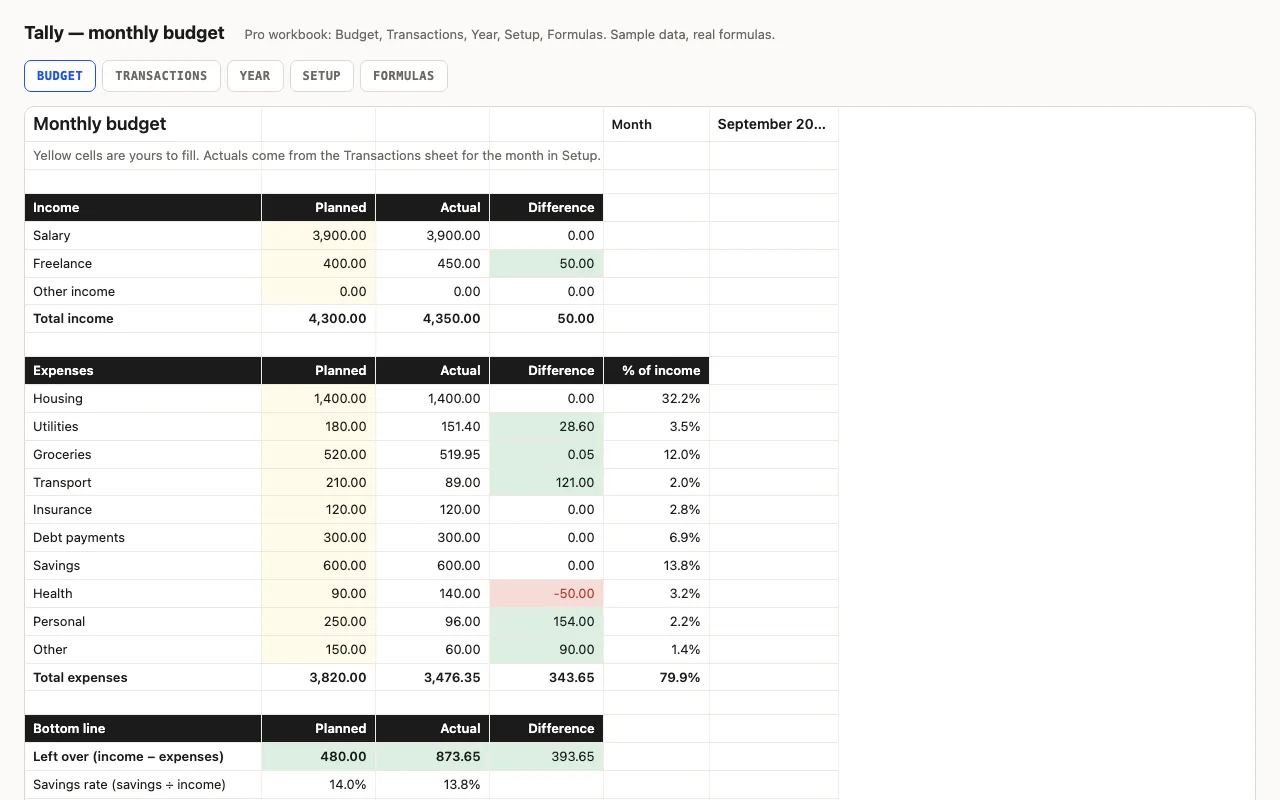
Nothing is hidden. The Budget sheet has two kinds of cells: yellow ones you type into and
formulas you can click. Overspending turns the difference red; coming in under turns it green.
The percentage column tells you what share of your income each category actually took.
The Pro version does the adding for you
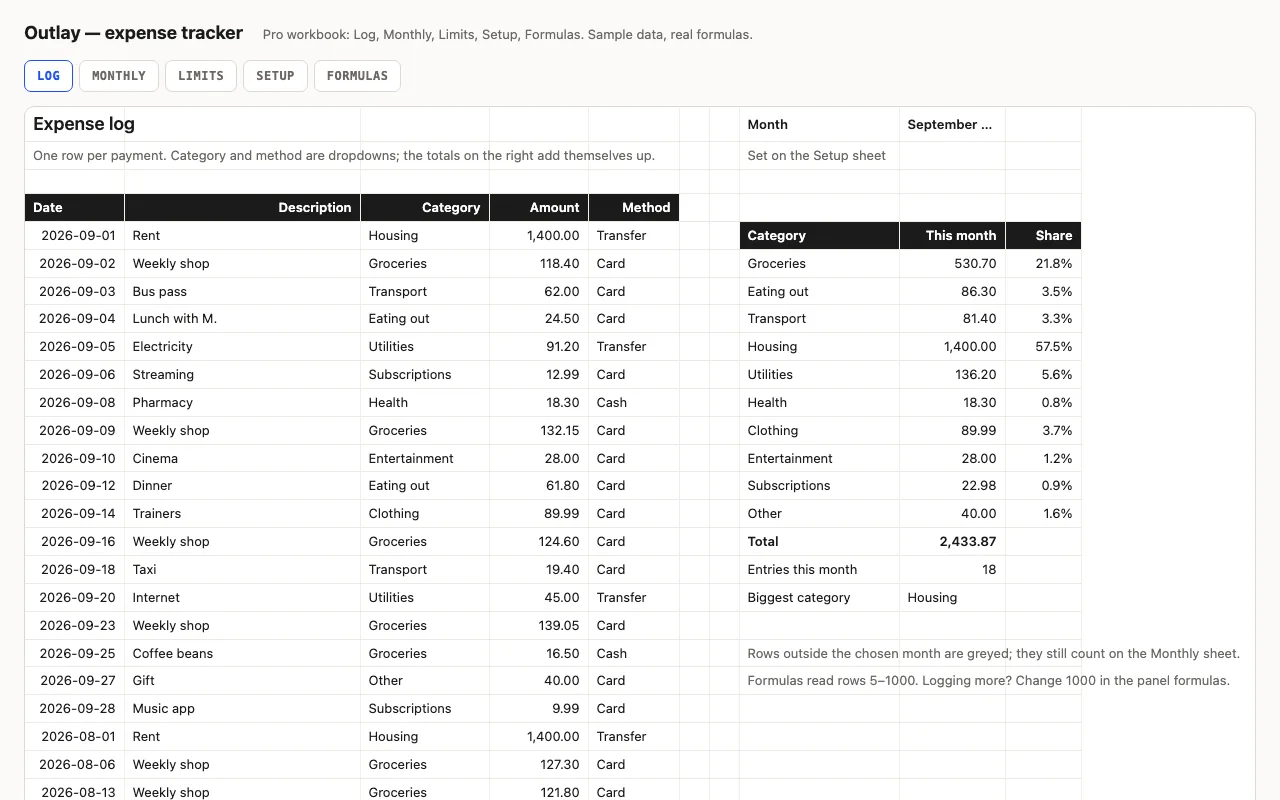
Log payments on the Transactions sheet — date, what it was, a category from a dropdown, the
amount — and the Budget sheet fills its Actual column by itself for whichever month you named
on Setup. The Year sheet looks back twelve months and draws income against expenses. Change a
category name once on Setup and the dropdown, the budget and the year view all follow, because
they read named ranges rather than typed words.
The Formulas sheet lists each calculation and says what it does in a sentence: why the SUMIFS
has three conditions, why the ranges stop at row 400 instead of running down a whole column
(Google Sheets gets slow), why there’s an IF in front of the percentage. If you want to change
how something works, you can, because you can see how it works now.
Checked, not just built
The build recalculates the workbook in LibreOffice and in a second, independent engine on the sample data and compares
ten totals against numbers computed outside Excel — the month’s income, the grocery total,
the savings rate, the twelve-month sum. If any of them drift, the file doesn’t ship.
What you will need to change
The twenty transactions are examples; delete them. Categories, planned amounts and the
currency symbol are yours to set on Setup and Budget.